CMMS asset register migration is the process of moving your existing equipment list — usually a spreadsheet — into a Computerized Maintenance Management System, so every asset has a structured digital record that can drive work orders, preventive maintenance schedules, and performance tracking. When it goes right, your team gains full asset visibility on day one. When it goes wrong, you end up with duplicate records, broken PM triggers, and maintenance history that vanishes into thin air.
Most migrations fail not because the software is hard to use, but because the data going in is dirty. Inconsistent naming, missing serial numbers, merged cells, and undefined asset hierarchies — problems that look harmless in a spreadsheet — become critical failures inside a CMMS where every field drives automation.
This guide walks you through every stage of moving your asset register from Excel to a CMMS: what fields to include, how to clean your data, how to map columns to CMMS fields, and how to verify the import before you go live. Follow these steps and your migration can be done in days, not months — without losing a single line of history.
Key Takeaways
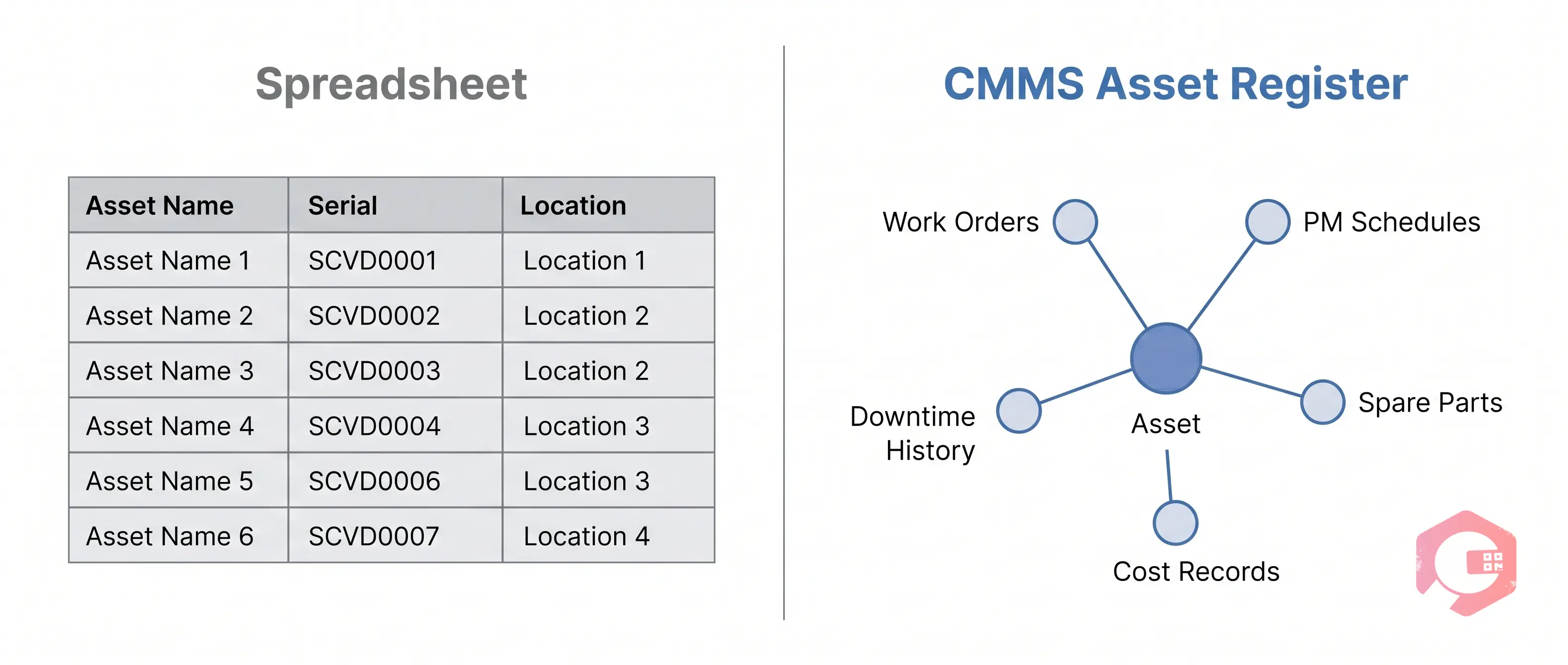
A CMMS asset register is more than a list of equipment. It is a structured database where every asset record is linked to work orders, preventive maintenance schedules, spare parts, downtime events, and maintenance cost history. When a PM is due, the system fires a work order automatically because the asset record contains the trigger logic. When a technician scans a QR code on a pump, the full service history loads because the asset record holds every past work order.
A spreadsheet is flat. A CMMS asset register is relational — every piece of data has a defined relationship with everything else. That structural difference is why you cannot simply copy and paste a spreadsheet into a CMMS and expect it to work. The data needs to be shaped to fit the relational model first.
Before you export a single row from your spreadsheet, decide which fields your CMMS requires and which your spreadsheet actually contains. The minimum viable asset record for any CMMS migration includes these six fields:
Optional fields that add significant value if your spreadsheet already contains them: warranty expiry date, OEM manual reference, assigned technician or team, and asset parent (for hierarchical asset trees where a pump belongs to a cooling system that belongs to a production line).

Industry practitioners consistently identify the same root causes when a CMMS migration goes wrong. According to Reliable Plant, poor asset data quality is cited as the number one reason CMMS implementations fail to deliver expected ROI. It is not a software problem. It is a data problem that existed long before the new system arrived.
Run through this list against your spreadsheet before you touch the CMMS import tool:
A good rule of thumb from maintenance practitioners: expect 20–30% of a typical spreadsheet asset list to need correction before it is import-ready. Budgeting time for this is the difference between a smooth go-live and a chaotic one.
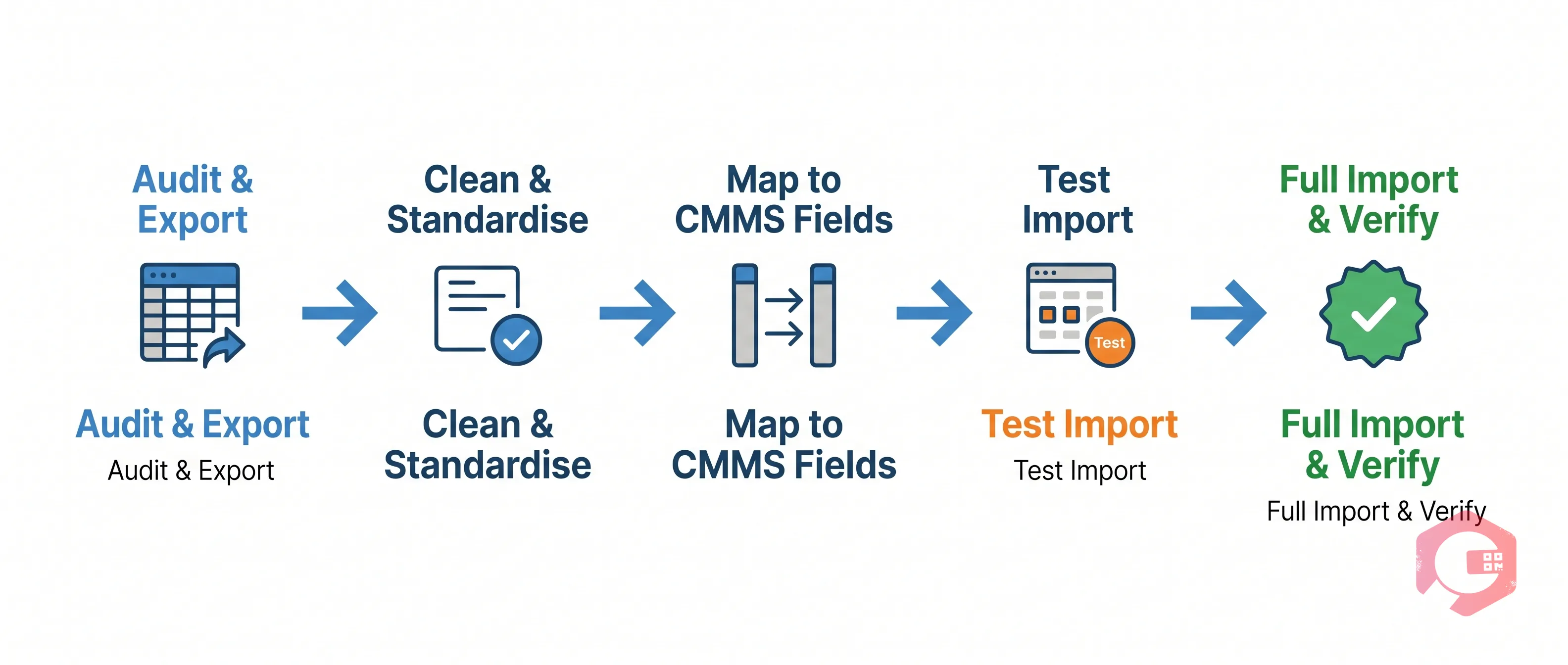
The following five steps are ordered intentionally. Each step creates the conditions for the next one to succeed. Do not skip the test import in Step 4 — it is the single step that most teams omit, and it is the step that catches 80% of the issues that would otherwise corrupt the full import.
Before exporting anything, audit what you actually have. Open the spreadsheet and answer these questions: How many unique assets are in it? Are decommissioned assets marked as such? Do all rows have an Asset Name and Location? Are serial numbers present for at least your Tier 1 critical assets?
Create a separate "decommissioned" tab and move any retired equipment there. These records should not be imported into the active asset register — they will inflate your PM workload and confuse technicians. If you want to retain them for historical reference, most CMMS platforms have an archive or inactive asset state you can use post-migration.
Export the active assets as a clean .csv or .xlsx file with one asset per row and no merged cells, no subtotals, no colour-coded rows. CMMS import tools read raw cell values — formatting gets stripped, and merged cells often break the entire row.
This is the step that determines whether your migration takes two days or two weeks. Work through the following in order:
When you're done, run one final deduplication pass on Asset IDs to make sure there are no repeats. A duplicated ID will cause the import to fail or, worse, silently overwrite one record with another.
Every CMMS has an import template with specific field names. Download yours before you build your spreadsheet headers. The goal is to make your spreadsheet columns match the CMMS field names exactly, or to use the platform's column mapping tool to connect them.
Here is a typical column mapping table for a CMMS asset import:
| Spreadsheet Column | CMMS Field |
|---|---|
| Equipment Name | Asset Name |
| Asset Code | Unique Asset ID |
| Department | Location / Area |
| Manufacturer | Make |
| Model No. | Model |
| Serial | Serial Number |
| Install Year | Commissioning Date |
| Priority | Criticality |
| Warranty Exp | Warranty Expiry Date |
Columns in your spreadsheet that have no matching CMMS field — informal notes, contact names in free-text cells, colour-coded status indicators — should be moved to a "Notes" or "Custom Attributes" field if the CMMS supports it, or documented separately and handled post-migration. Do not try to force a field that doesn't exist in the CMMS import template. It will either be ignored or cause an error.
Before importing your full asset list, select 5–10 representative assets that cover the range of your data: one Tier 1 asset with complete data, one asset with minimal data, one with a complex hierarchical location, and one from each major asset category (production, utilities, vehicles). Import only these rows.
After the test import, check each record manually:
Fix any errors in your source file before running the full import. Most errors that appear in 5–10 test records will exist across hundreds or thousands of rows in the full file. Correcting them once in the source is far faster than correcting them record by record inside the CMMS.
Run the full import during a low-activity period — early morning or a weekend window — so your team is not trying to use the system while records are being created. Most modern CMMS platforms provide an import progress screen and a results log that shows how many records were created successfully and how many failed with error codes.
After the import completes:
The question every team asks after completing the asset import is: what about the maintenance history in the old spreadsheet? Do we lose all of that?
The short answer is: you can migrate it, but it requires a separate process from the asset register import, and you need to be selective about how far back you go.
Practical guidance on historical data migration:
According to ISO 55000 and research published by Plant Engineering, the international standard for asset management, maintaining a complete and accurate asset register is a foundational requirement for any asset management system. The quality of data in that register directly determines the quality of every maintenance decision made from it.
A CMMS migration is as smooth as the import tools that power it. Cryotos is built specifically for asset-heavy operations that need to move from spreadsheet chaos to structured, data-driven maintenance — and the platform's import architecture reflects that:
Plants that complete the migration with clean data and properly configured PM schedules typically see measurable results quickly. Cryotos customers report a 30% reduction in unplanned downtime and 25% faster repair times within the first year — results that depend entirely on the quality of the asset register built during migration. For a deeper look at asset management best practices, see our guide on asset maintenance management software. You can also use our asset management checklist to validate your register completeness before and after migration.
For a facility with 100–500 assets, a well-prepared migration typically takes 3–7 days end-to-end: one to two days for data cleaning, one day for test imports and corrections, and one day for the full import plus verification. Facilities with 500+ assets or complex hierarchical structures should plan for 2–3 weeks, primarily due to data cleaning time. The CMMS import itself usually completes in minutes or hours — the time is in the preparation.
Phased imports work well and are often the right approach. Start with your Tier 1 production-critical assets, get their PM schedules activated, then import Tier 2 and Tier 3 assets in subsequent batches. This approach lets your team start generating value from the CMMS immediately rather than waiting for a perfect, complete import. Most CMMS platforms including Cryotos support adding assets at any time without disrupting existing records.
Import what you have, mark what's incomplete, and schedule physical verification rounds to fill the gaps. Most CMMS platforms allow you to flag assets with a "data incomplete" status. For Tier 1 assets, make a site visit to physically record missing serial numbers and OEM information before the import. For lower-criticality assets, importing with "TBC" in optional fields is better than delaying the entire migration until every field is perfect.
Not necessarily. Most CMMS platforms support importing historical work order records in addition to the asset register. The practical recommendation is to import the last 24 months of maintenance history for your most critical assets, and archive the rest in a read-only file. For failure analysis and PM calibration, 24 months of quality history is more useful than 10 years of incomplete spreadsheet records.
Yes — modern cloud-based CMMS platforms like Cryotos are designed for non-technical users to configure and import data. The bulk Excel import feature handles most migrations without any coding or database work. For integrations with existing ERP systems or complex hierarchical imports with thousands of assets, involving IT or the CMMS vendor's implementation team is advisable. For standalone spreadsheet-to-CMMS migrations, a maintenance manager with a clean spreadsheet can complete the full import without IT involvement.
Your asset register is the foundation everything else in your CMMS is built on — work orders, PM schedules, downtime tracking, spare parts, and maintenance KPIs all depend on it being accurate and complete. Taking the time to clean and structure your data before migration is the single highest-ROI activity in the entire CMMS implementation. If you're ready to move your asset register from spreadsheet to a system that actually drives maintenance execution, Cryotos provides the import tools, mobile verification, and PM automation to make that transition fast, clean, and permanent.




Cryotos AI predicts failures, automates work orders, and simplifies maintenance—before problems slow you down.