
CMMS user roles decide who can see, create, assign, approve and close maintenance work, and in a multi-site operation they also decide where. The strongest structure gives every role a clear scope, function and level of authority, then repeats that pattern at every site.
Most maintenance teams start by copying job titles into their Computerized Maintenance Management System and fixing the gaps later. That approach breaks down once a second plant, a contractor crew or a new region joins. This guide covers seven steps, a sample role matrix and the Cryotos features behind each step.
Key Takeaways
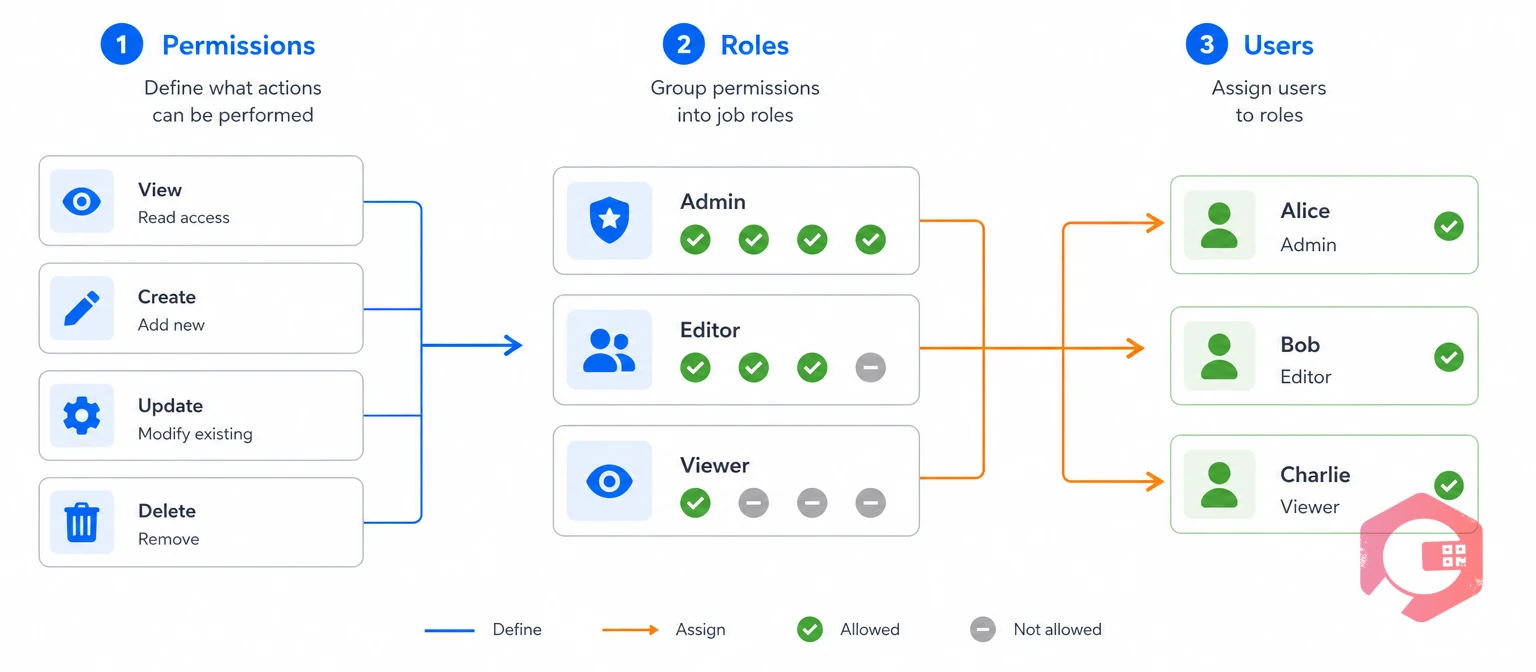
Role-based access control (RBAC) is a method of granting system permissions based on a person's job role instead of their identity. NIST’s role-based access control model became the ANSI/INCITS 359 standard, and many enterprise systems follow its logic.
In maintenance, you assign permissions to roles such as Technician or Plant Manager once, then assign people to those roles. A new hire gets the right access on day one, and a departing employee loses it in a single step.
Aim for four to eight core roles. More than that often means job titles are leaking into the permission model.
ISO 55000 asset management standards point the same way. ISO 55001, part of that family, expects top management to assign and communicate roles, responsibilities and authorities. A written role list therefore also supports certification audits.
Cryotos supports this with user role and level-based access. Administrators create custom roles, set permissions at the module and action level, and restrict access by department or location.
A role list built from real jobs stays stable even when people and titles change.
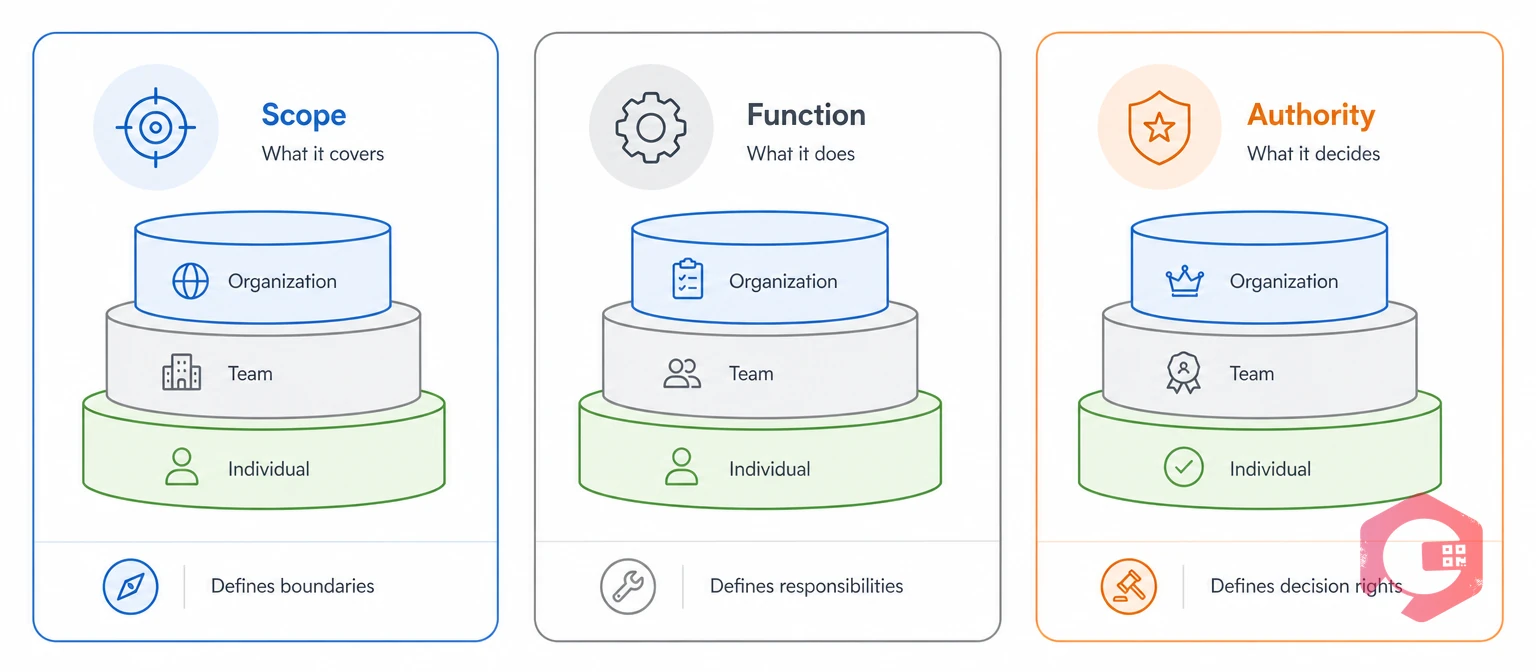
Every role in a multi-site team answers three questions: where does it apply, what job does it do, and what can it change? Answering all three keeps the role list short and the permissions precise.
The Scope-Function-Authority Framework:
A permission scope is the set of sites, departments and assets a role can see and act on. Scope is what keeps Plant A's work orders out of Plant B's queue.
A Plant B electrical supervisor has site scope (Plant B only), a planning function and approval authority for routine work orders. A corporate reliability engineer has enterprise scope, an analysis function and view-only authority over work orders.
A Technician at Plant A and a Technician at Plant B share the same function and authority. They differ only in scope, so you reuse one role and change the site assignment.
Each facility needs autonomy to run day-to-day maintenance, while the corporate office needs consolidated reporting. Cryotos supports that layout through multiple organization management. Each site runs its own users, asset tree and maintenance calendar, and corporate administrators keep cross-site visibility.
Three layers produce roles that are precise enough to secure and simple enough to maintain.
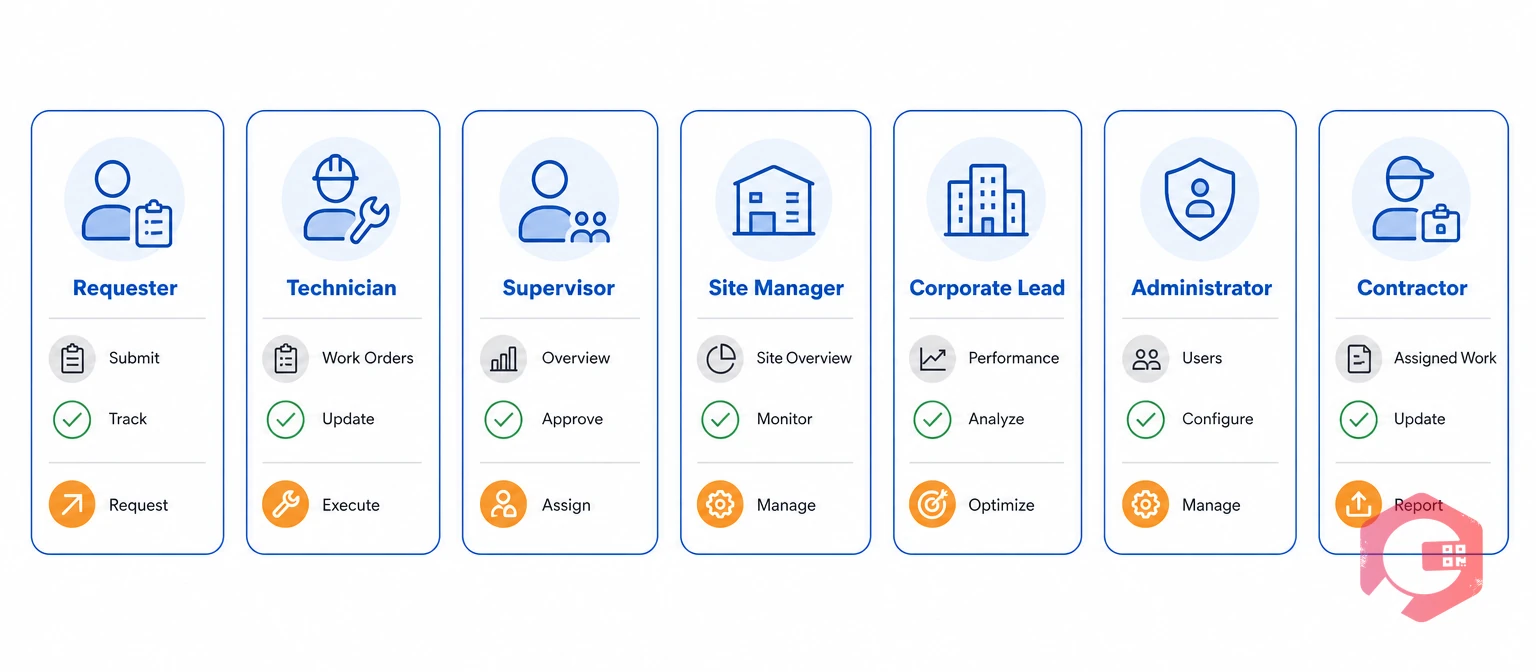
A role matrix is a one-page table that lists each role with its scope, permissions and limits. Draft it first, get sign-off from operations, safety and IT, and only then configure the system.
The sample matrix below shows how seven common roles divide the work across a multi-site team.
| Role | Site scope | Core permissions | Cannot do | Approval authority |
|---|---|---|---|---|
| Requester | Own site and department | Submit work requests, add photos, track status | Assign, edit or close work | None |
| Technician | Assigned sites and work orders | Update jobs, log readings and parts, attach photos, close assigned work | Edit asset records or approve work | None (supervisor verifies) |
| Supervisor or planner | One site, one or more departments | Assign and reschedule work, build PM schedules, verify completion | Change roles or view other sites | Routine work orders |
| Site manager | One site, all departments | View site dashboards, manage the site team, review site budgets | Configure the system or see other sites | Site-level approvals and escalations |
| Corporate maintenance lead | All sites, mostly view-only | Benchmark KPIs, set standard templates and SOPs | Edit day-to-day work orders | Enterprise standards |
| System administrator | All sites, configuration only | Create roles, assign users, manage master data | Approve operational work | Access changes only |
| Contractor | Assigned work orders only | View assigned jobs, submit completion reports | See other vendors, costs or sites | None |
Adjust the rows to fit your own organization, but keep the Cannot do column. Gaps in access are easy to spot; hidden over-permissions are not.
Want to see how work moves between these roles? Explore work order management in Cryotos, from request to verified closure.
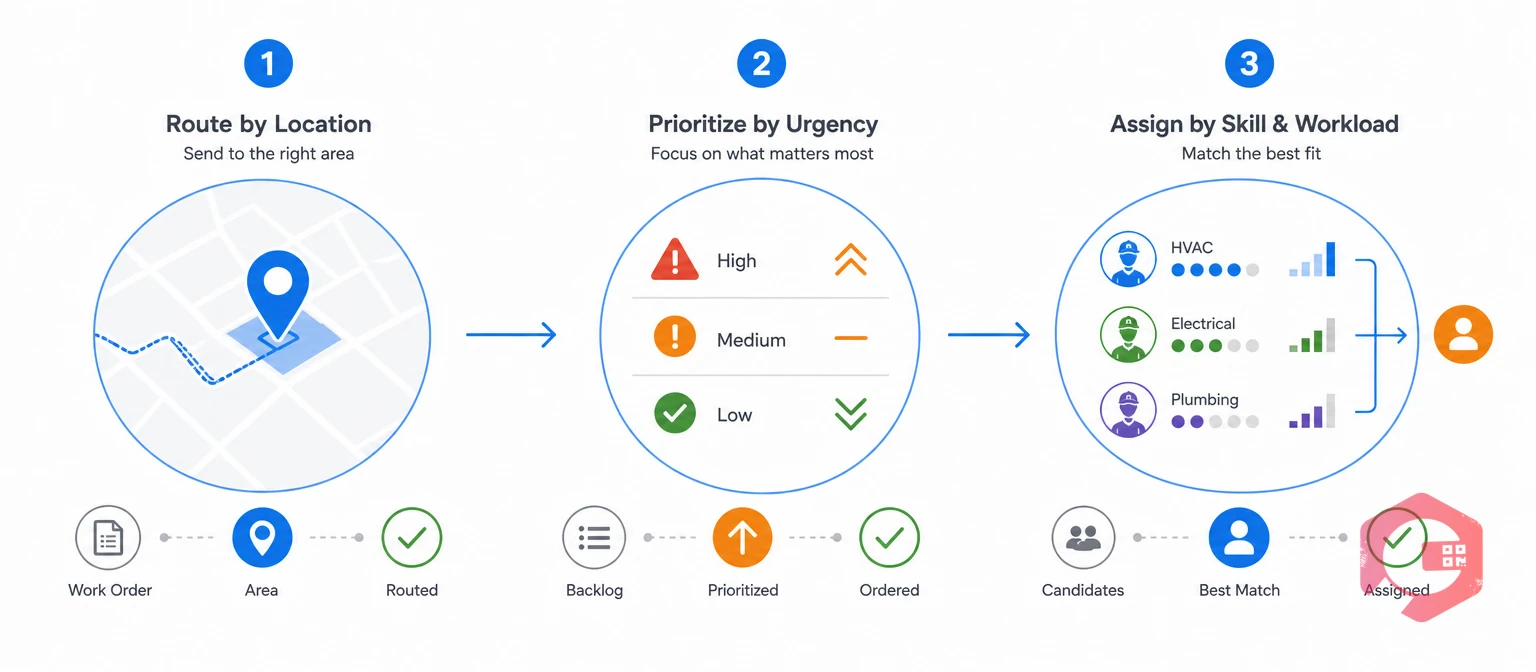
Routing rules turn your CMMS user roles into daily behavior. When a request arrives, the system should know its site, department and skill set. It then sends the request to the right queue without a dispatcher.
Separation of duties is a control that prevents one person from requesting, approving and closing the same job. Apply it to high-impact work, such as safety-critical repairs and large spare parts purchases.
Cryotos workflow automation supports configurable assignment rules, approval chains and push notifications. The right person sees each task the moment it is created, updated or escalated.
Contractors and field technicians need the narrowest access of all CMMS user roles and the easiest way to use it. Both groups spend little time at a desk.
A limited-access contractor account should work like this:
Safety rules already point this way. OSHA’s lockout/tagout standard separates authorized employees, who apply locks and service equipment, from affected employees, who only operate it. Mirror that split in your roles, so only authorized people can complete isolation steps.
Cryotos offers dedicated contractor accounts with configurable access limits, plus vendor management features that track contractor performance and enforce approval-based task completion.
Field teams that cannot reach the system on the plant floor go back to paper, and the data gap widens. Mobile access closes it: technicians receive jobs, scan asset QR codes, attach photos and update status from a phone or tablet.
The Cryotos mobile CMMS app works offline and syncs when the connection returns, which suits remote sites, basements and utility tunnels.
Accountability in maintenance means traceability, not blame. When equipment fails, you need to know who inspected it last, what they found and whether the corrective action closed on time.
Least privilege is the practice of giving each user only the access needed to do their job. The least privilege principle limits the damage from mistakes and misused accounts, and it makes audit trails easier to read.
Cryotos captures user activity logs, time-stamped work order updates, digital approvals and electronic signatures. Inspectors and root cause analysis teams can then reconstruct any job from request to closure.
An audit trail only works when every person logs in as themselves, so ban shared accounts.
Roles drift. People change jobs, projects end, and temporary access becomes permanent. Left alone, this role creep gives people more access than they need and clutters every site's data.
Most multi-site operations that stay in control treat a review of CMMS user roles as a standing calendar event, not a one-off cleanup. Assign one owner per role, so every change has an approver.
A new plant should inherit the standard role matrix, workflows and checklists on day one. Create the location, assign users to existing roles and import the asset register instead of designing roles from scratch each time.
Master templates for preventive maintenance and checklists deploy to every Cryotos site, and changes to a master template propagate to every location.
Executive dashboards built on the Cryotos BI dashboard aggregate maintenance KPIs across sites in real time, including MTTR, MTBF and site-wise maintenance comparisons.
Maintenance teams using Cryotos have reported up to 30% reduction in unplanned downtime and 25% faster repair turnaround. Both results depend on the right people seeing the right work at the right time.
CMMS user roles are named sets of permissions that control what each person can see and do in the maintenance system. Common examples include Requester, Technician, Supervisor, Site Manager and Administrator. Assigning people to roles, instead of setting permissions one user at a time, keeps access consistent as the team grows.
Most multi-site teams need four to eight core roles: requester, technician, supervisor, site manager, corporate viewer, administrator and contractor. Resist creating a new role for every site. Reuse the same role and change its scope instead.
No. Keep one enterprise role set and let sites differ only by scope, meaning which locations, departments and assets a user can access. If a site needs an exception, document it and review it every quarter, so local roles do not drift away from the standard.
Create limited-access contractor accounts that show only the work orders assigned to that vendor. Contractors submit completion reports and nothing else, and every action is logged. Disable the account when the contract ends.
Review CMMS user roles every quarter, and again after any reorganization, acquisition or site opening. Each review should remove orphaned accounts, confirm who still needs approval or administrator access, and check for roles that sites created outside the standard matrix.
Yes, when the roles do not conflict. A regional supervisor may need the same supervisor role at three sites, which is a change of scope rather than a new role. Avoid combining roles that break separation of duties, such as approver and administrator, because that lets one person grant access and approve work.
Clear roles keep every site accountable without slowing the work down. Schedule a free demo to see how Cryotos structures roles, routes work and gives leaders cross-site visibility.




Cryotos AI predicts failures, automates work orders, and simplifies maintenance—before problems slow you down.