The Quick Menu in Cryotos is a customizable shortcut panel available in Account Settings that lets technicians and managers pin their most-used modules for instant one-tap access — no more navigating through multiple menus to reach what you need. Configure a personal navigation bar that stays consistent across every session, on both web and mobile.
For maintenance teams juggling work orders, asset checks, and real-time alerts on the go, every second counts. A cluttered, one-size-fits-all menu slows you down. Cryotos Quick Menu solves this by putting your workflow front and center — customized to match exactly how you work.
The Quick Menu is a personalized navigation feature built into the Cryotos CMMS platform. It lives in your Account Settings under the Customization section and allows every user — from field technicians to plant managers — to create a shortcut panel with direct links to the modules they use most.
Think of it as your personal control room dashboard. Instead of navigating through the full sidebar menu every time you need to raise a work order or check asset status, your Quick Menu surfaces those actions with a single tap. It is persistent, role-aware, and designed to reduce friction in high-paced maintenance environments.
Key characteristics of the Quick Menu:
Accessing the Quick Menu setup is straightforward. From any screen in Cryotos, navigate to your profile icon in the top-right corner and select Account Settings. Inside, you'll find a Customization section — this is where the Quick Menu lives.
The Customization section is designed to be a one-stop shop for personalizing your Cryotos experience. The Quick Menu panel gives you a drag-and-drop interface to select and reorder the modules you want pinned. Typical modules available to add include:
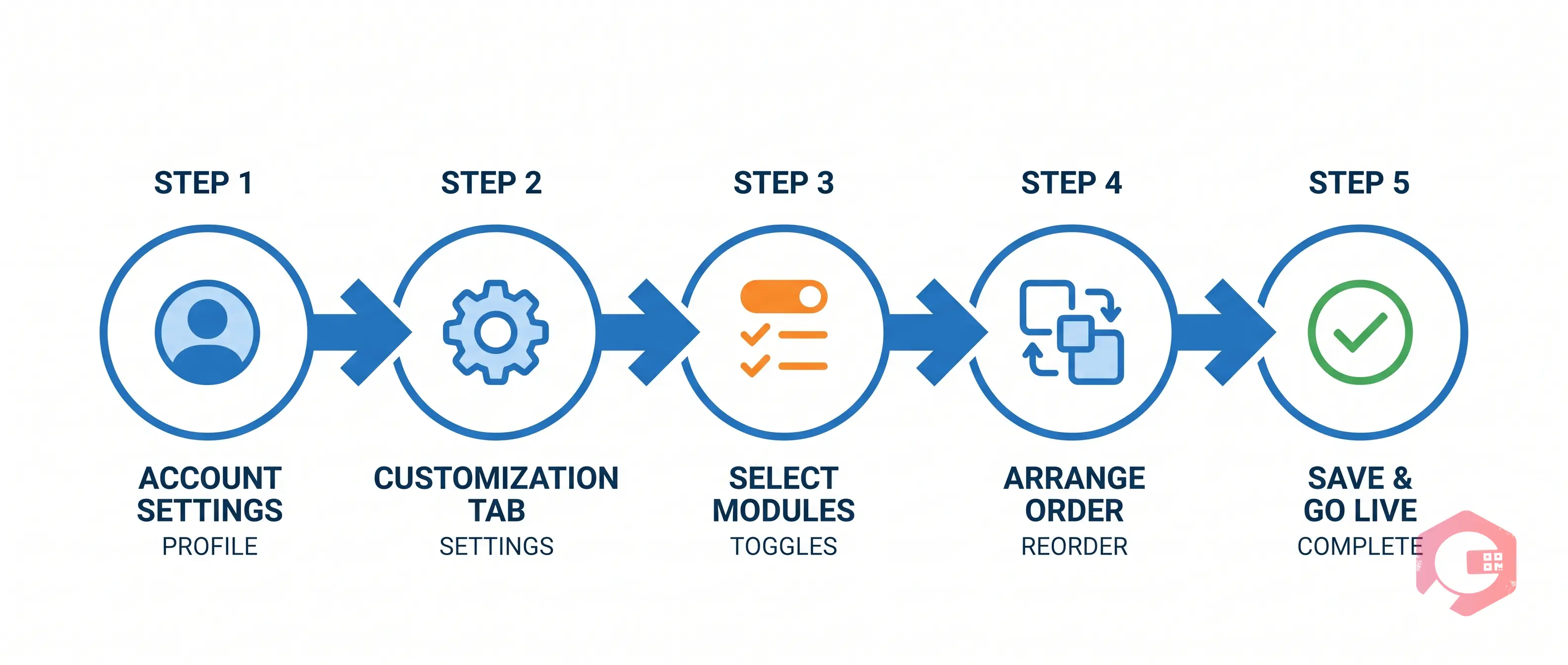
Setting up your Quick Menu in Cryotos takes less than two minutes. Here's the step-by-step process:
You can revisit this setup anytime. Roles change, projects shift, and your Quick Menu should evolve with you. There is no limit on how many times you can update it.
To get the most out of your Quick Menu, keep three rules in mind. First, prioritize action-oriented modules — shortcuts where you do something (raise a work order, log downtime) deliver more value than purely informational ones. Second, review your Quick Menu every quarter and remove shortcuts you haven't used. A lean menu is a fast menu. Third, if you manage a team, share your recommended Quick Menu layout with new hires so they get productive faster from day one.

The Quick Menu is valuable across every role in a maintenance organization, but some users feel the impact most sharply.
Technicians operating on the shop floor or in the field need lightning-fast access to work orders and asset data. They're often wearing gloves, working in poor lighting, or under time pressure. A Quick Menu with Work Orders, Asset QR Scan, and Downtime Logging means they complete their digital workflow in seconds rather than minutes — and get back to the job at hand.
Managers need a bird's-eye view of operations at any moment. A Quick Menu configured with the BI Dashboard, Open Work Orders, and PM Calendar gives them instant visibility without digging through nested menus. When something breaks, they can see the full operational picture before the first phone call is over.
For stores teams, speed in issuing parts and checking stock levels directly impacts wrench time. A Quick Menu pointing straight to Inventory, Purchase Requests, and Stock Alerts eliminates the multi-click journey and keeps the supply chain moving without bottlenecks.
Understanding a feature in theory is one thing — seeing it in action is another. Here are three scenarios where the Quick Menu makes a measurable difference.
A critical compressor trips at 2 AM. The on-call technician gets an alert on their phone, opens Cryotos, and with one tap on their Quick Menu hits Work Orders — raising a breakdown work order immediately. No login maze, no searching for the right module. They're logging the fault, uploading a photo, and dispatching a colleague in under 90 seconds. Every minute of unplanned downtime carries a real cost, and Quick Menu directly reduces that window.
A maintenance supervisor starts every morning by reviewing which PM tasks are due. With the Preventive Maintenance module pinned to their Quick Menu, they open Cryotos at 7 AM and see the full daily schedule in one tap. They assign tasks, check prior-day completion status, and update priorities — all before the shift briefing ends.
A stores technician notices a critical spare is running low during a routine check. With Inventory pinned to their Quick Menu, they raise a purchase request directly from the shortcut. The request flows through the automated approval workflow, and the part is ordered before stock hits zero — no navigation detours, no delays.
The Cryotos CMMS mobile app is built for field-first work, and the Quick Menu is a core part of that experience. When you configure your Quick Menu in Account Settings, those shortcuts sync automatically to the mobile app — no separate setup required.
On mobile, the Quick Menu appears as a bottom navigation bar or swipeable drawer, giving thumb-friendly access to your top shortcuts. This is especially valuable in environments where gloves, noise, or limited lighting make detailed multi-step navigation impractical.
The mobile Quick Menu also works in offline mode. If a technician is in a basement plant room or a remote site with no signal, their Quick Menu shortcuts remain fully accessible. Any actions taken offline — raising a work order, logging a downtime event — sync automatically the moment connectivity is restored.
Combined with Cryotos's QR code scanning for assets, the mobile Quick Menu creates a seamless field workflow: scan the asset QR code, jump to Work Orders in one tap, raise the ticket, and move on. That speed adds up to hours saved per technician per week across a large maintenance team.
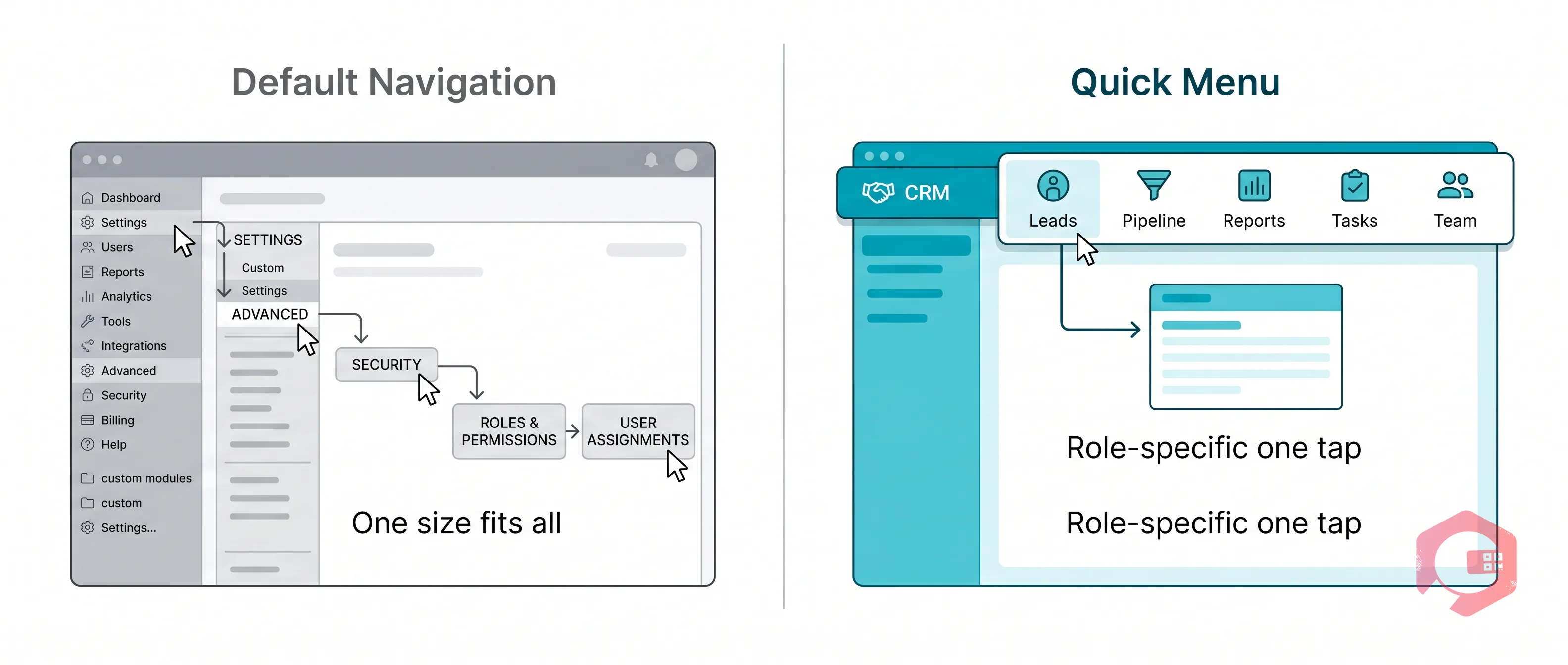
Default navigation menus are built for everyone, which means they're optimized for no one in particular. In a full-featured CMMS like Cryotos, the sidebar can include dozens of modules — work orders, PMs, assets, inventory, downtime, reports, permits, workflows, and more. For a technician who uses three of those daily, scrolling through the full list is friction.
The Quick Menu removes that friction by surfacing what matters to you. Reducing interface complexity improves task completion speed and reduces entry errors — both of which matter in maintenance operations where mistakes translate to safety risks and equipment damage. Here is how the two approaches compare:
The default menu is always there for edge cases. But for day-to-day operations, the Quick Menu is where productivity lives. If your team is ready to work smarter, Cryotos CMMS gives every user the tools to personalize their workflow — starting with the Quick Menu. Pair it with Work Order Management and Asset Management to build a maintenance operation that runs at the speed your team needs.
The Quick Menu is located in Account Settings under the Customization section. Click your profile icon in the top-right corner of Cryotos, select Account Settings, and navigate to Customization to find and configure your Quick Menu shortcuts.
Yes. The Quick Menu is user-specific, meaning each person on your team can configure their own shortcut panel independently. A technician's Quick Menu can look completely different from a manager's, reflecting their individual daily tasks and module priorities.
Yes. When you configure your Quick Menu in Account Settings on the web, those shortcuts automatically appear in the Cryotos mobile app as well. No separate mobile setup is needed — changes sync immediately across all devices.
The Quick Menu supports up to 6–8 shortcuts to keep the interface clean and fast. Overloading the menu defeats its purpose, so selecting your top 4–6 most-used modules is recommended for the best day-to-day results.
Absolutely. Return to Account Settings > Customization at any time to add, remove, or reorder your Quick Menu shortcuts. There is no limit on updates, and all changes take effect immediately without requiring admin approval.



Cryotos AI predicts failures, automates work orders, and simplifies maintenance—before problems slow you down.