To connect ERP and CMMS systems, you build a data pipeline between the two platforms. That pipeline lets your enterprise resource planning software and your computerized maintenance management system share assets, work orders, parts, and cost data automatically. Done well, it stops technicians and buyers from re-typing the same information into two places. Maintenance teams that connect ERP and CMMS platforms report cleaner cost data, faster purchasing, and fewer stockouts because both systems finally see the same numbers. This guide walks through the exact steps, patterns, and pitfalls involved in an ERP-CMMS integration project, whether you run SAP, Oracle, Microsoft Dynamics, or another platform.
Key Takeaways
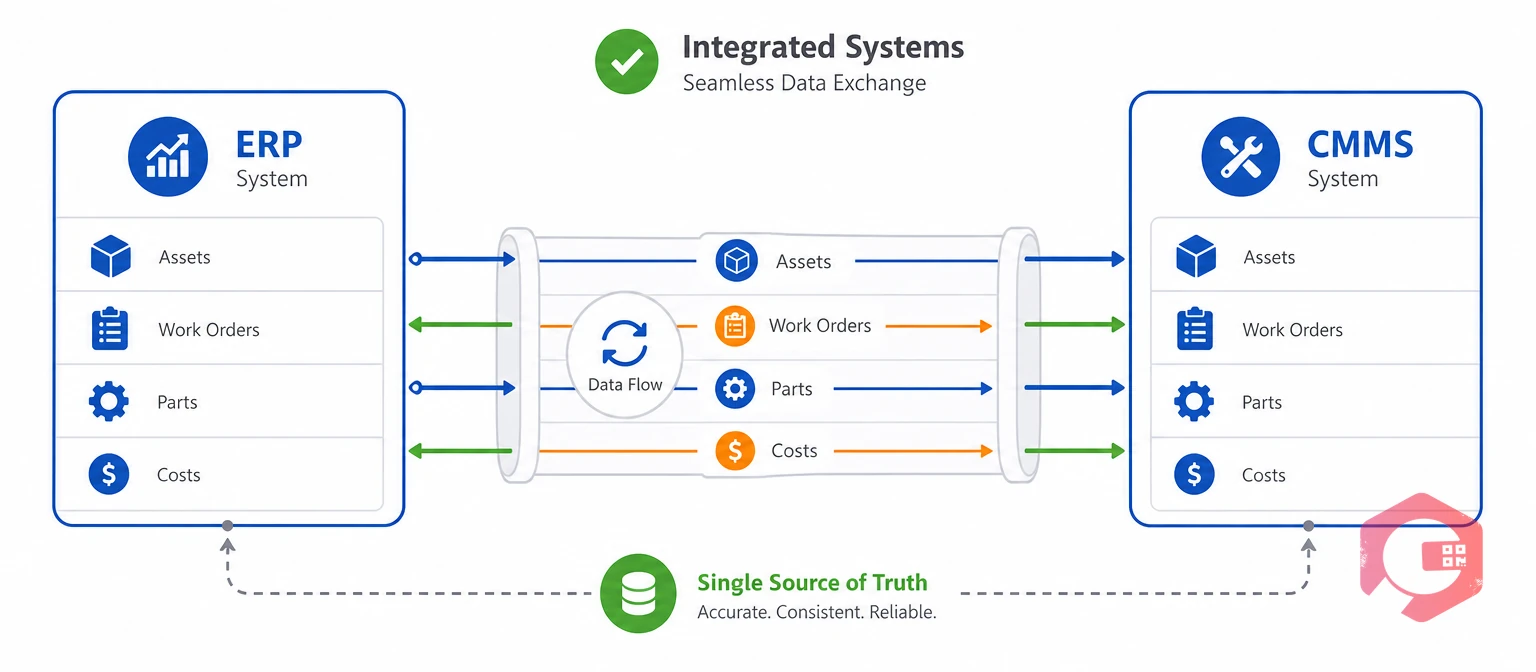
ERP and CMMS integration is the automated exchange of asset, work order, inventory, and cost data between an enterprise resource planning system and a computerized maintenance management system. Instead of a planner re-keying a purchase order or a technician manually updating a cost center, the two platforms pass that information back and forth on their own.
An enterprise resource planning platform typically owns the "system of record" for finance, procurement, and the general ledger. A Computerized Maintenance Management System owns the "system of execution." It runs the daily work orders, preventive maintenance schedules, and technician tasks that keep equipment running. Neither system does the other's job well. That is exactly why teams connect them instead of picking one over the other.
ERPs model the business in accounts, cost centers, and purchase requisitions. CMMS platforms model the plant in assets, failure codes, and labor hours. An ERP-CMMS integration translates between those two data models. That way, a work order's parts and labor land in the right general ledger account without anyone doing it by hand.
Not every facility needs a live, real-time sync on day one. A small maintenance team with a handful of assets can often get by on a monthly manual export. A multi-site manufacturer processing hundreds of work orders a week cannot. The right level of integration depends on transaction volume, not on company size alone.
Connecting ERP and CMMS systems removes duplicate data entry and gives finance, procurement, and maintenance one shared view of asset cost and availability. Most facilities that skip integration end up with two versions of the truth: the CMMS says a part is in stock, the ERP disagrees, and a technician drives to a supplier for something that was already on the shelf.
Maintenance teams using Cryotos have reported up to 30% reduction in unplanned downtime and 25% faster repair turnaround once work order, parts, and cost data stopped sitting in disconnected spreadsheets and systems. Most facilities that successfully connect ERP and CMMS platforms see the biggest win in procurement lead time, since reorder triggers stop waiting on a human to notice low stock.
This mirrors what ISO 55000 asset management guidance recommends. Asset data should flow to wherever a decision gets made. It should not sit locked inside one department's software. Benchmarks from SMRP point the same way: plants that connect their cost and maintenance data report tighter budget control than those that reconcile the two systems by hand each month.
You need ERP and CMMS integration when technicians and buyers spend real time re-entering the same information into both systems. A few warning signs show up again and again across maintenance teams that are ready to connect their platforms.
If two or more of these sound familiar, the manual workaround is already costing more staff time than a properly scoped integration project would.
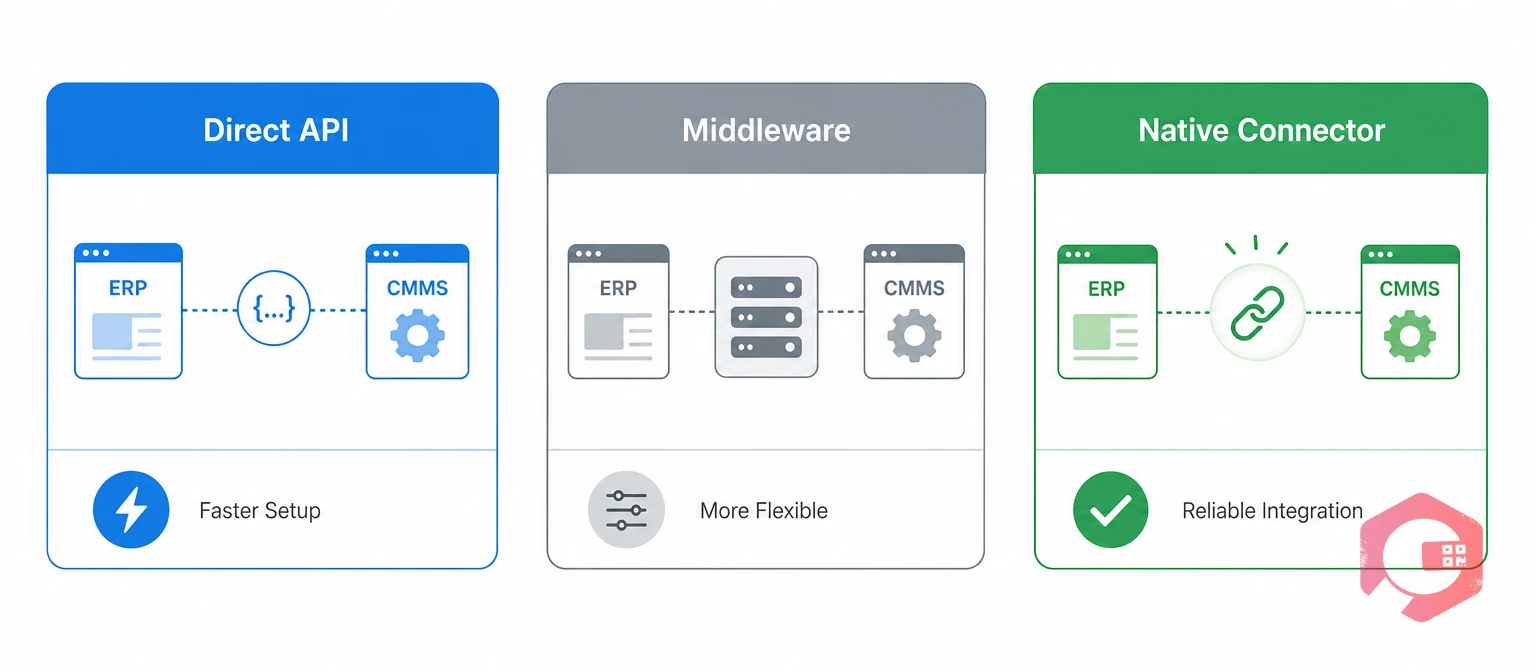
Teams typically connect ERP and CMMS systems through one of three methods: direct API calls, a middleware platform, or a native pre-built connector. Each fits a different combination of budget, technical resources, and system complexity.
| Method | Best For | Setup Effort | Trade-off |
|---|---|---|---|
| Direct REST/SOAP API | Teams with in-house developers and a clear, stable data mapping | Moderate to high | You own every error, retry, and upgrade break |
| Middleware (iPaaS) | Multiple systems, complex transformations, non-developer maintenance | Moderate | Adds a platform fee and one more system to manage |
| Native/pre-built connector | Common ERP-CMMS pairs with an existing certified connector | Low | Less flexible for unusual fields or custom workflows |
Most maintenance teams start with a native connector when one exists for their ERP, then add middleware later if they need to bring a second or third system into the same data flow. Cryotos ships with a purpose-built ERP integration. It covers the SAP and Microsoft Dynamics 365 field mappings that most manufacturing and facilities teams need. It works out of the box.
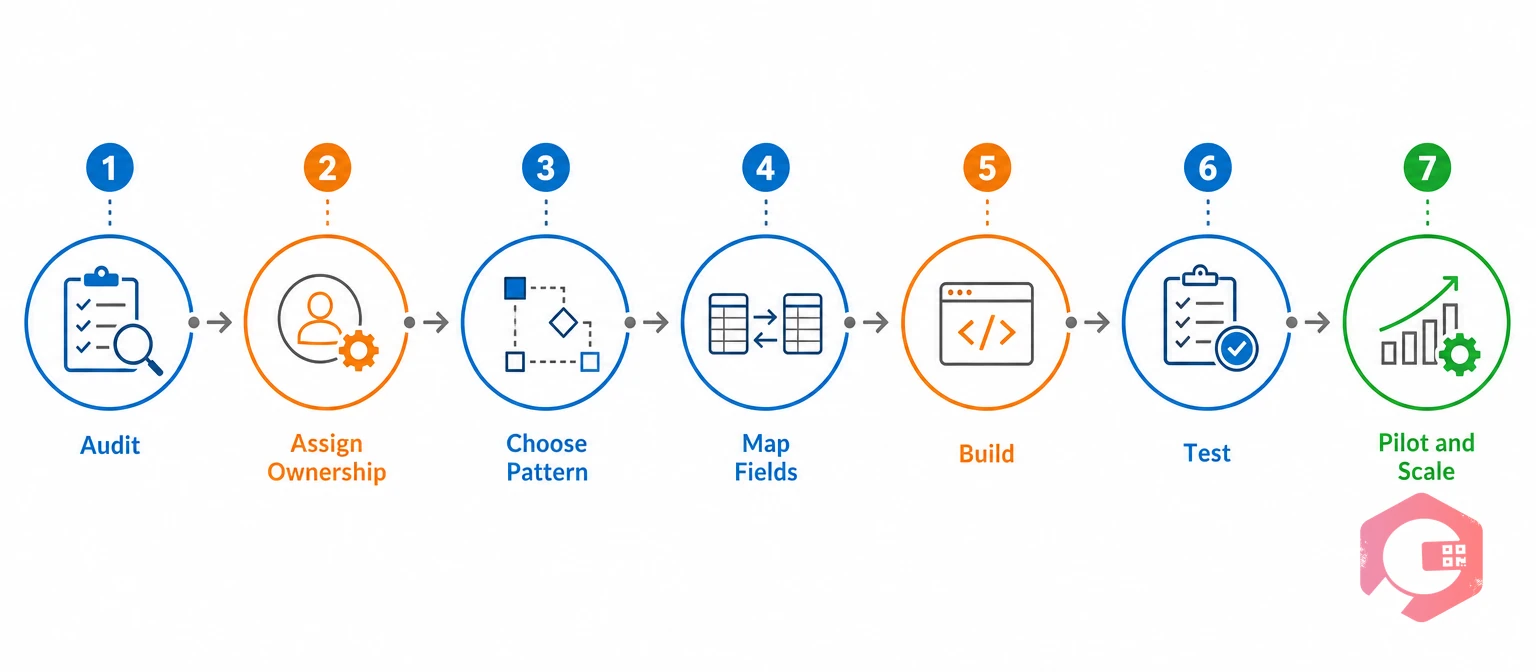
Connecting ERP and CMMS systems follows seven steps: audit your data, assign ownership, choose a pattern, map fields, build the integration, test it, then pilot and scale. Skipping the early steps to jump straight to building is the single most common reason these projects need a rebuild within a year.
Before mapping a single field, list what each system already tracks: asset records, vendors, purchase orders, work order types, inventory locations, and cost centers. Note where the two systems already disagree. Mismatched asset IDs and duplicate vendor records are common. They need cleanup before integration, not after.
Set aside real time for this step. Most teams underestimate it. A spreadsheet export from each system, sorted and compared side by side, usually surfaces the worst mismatches within a day or two.
System-of-record ownership is the rule that only one application may create or change a given field. If both the ERP and the CMMS can edit a work order's status, the two records drift apart within weeks. Decide, field by field: who owns the asset master, who owns cost postings, who owns vendor records, and who owns work order status. Write the answer down. A verbal agreement rarely survives a staff change or a support handover.
Pick a pattern based on how fast each data type needs to move. Stock checks a technician waits on need a live API call. Work order updates and cost postings usually work better as event-driven messages that queue and retry on their own. Initial master data loads, like importing your full asset list, are a good fit for a one-time batch job.
Do not force every data type into the same pattern just to keep the project simple. A slow batch job for stock checks will frustrate technicians standing at a parts shelf. A live API call for a monthly cost report adds complexity nobody needs.
Build one master mapping table covering asset IDs, work order statuses, priorities, units of measure, currencies, and failure codes. Every mismatch here shows up later as a support ticket, so this step deserves more time than most project plans give it.
Whichever method you chose in the earlier comparison, build in idempotency from day one — a retried message should update one record, not create a duplicate. Set up authentication, error logging, and a dead-letter queue for messages that fail after retries, so nothing silently disappears.
Test the failure paths, not just the clean ones. Force a duplicate submission, an out-of-order update, an offline mobile sync, and a cancelled work order. An integration that only works when everything goes right will fail the first week it meets real plant-floor conditions.
Write down every test case and its expected result before you run it. That written list becomes your regression test suite the next time either system upgrades.
Run the integration live on one site or one asset class for two to four weeks. Check record counts and cost postings daily until they match without manual correction. Only then add preventive maintenance, IoT data, or additional locations — expanding scope before the pilot is clean is how most integration projects stall out.
Picture a technician closing a pump repair in the CMMS. The work order carries three hours of labor, one replacement seal, and a failure code. The integration reads that closed work order. It matches the labor rate and part cost from the ERP's own tables. It posts a single cost entry to the pump's cost center. No planner re-types a number. No buyer double-checks a spreadsheet. The whole chain runs in seconds, not days.
See how a ready-built work order management system already threads labor, parts, and failure codes through each of these steps automatically.
Six data domains carry almost every ERP-CMMS integration. Mapping each one's owner, direction, and typical fields before you build saves rework later.
| Data Domain | Usual Owner | Sync Direction | Example Fields |
|---|---|---|---|
| Asset master | ERP or CMMS, never both | One-way to the consumer | Asset ID, hierarchy, serial number, criticality |
| Work orders | CMMS | Outbound to ERP | WO number, status, labor hours, failure code |
| Inventory and parts | ERP | Bi-directional, event-based | Item ID, warehouse, reservation, issue, reorder point |
| Purchasing | ERP | Inbound to CMMS | PO number, vendor, expected delivery, receipt status |
| Cost postings | ERP, posted once | Inbound from CMMS | Labor cost, material cost, cost center, posting reference |
| Vendors and workers | ERP | One-way to CMMS | Vendor name, contact, worker craft, approval authority |
Store a stable cross-system key on every record in both directions. Do not match records on names or descriptions. Someone will rename an asset eventually. When that happens, a name-based match breaks silently, and nobody notices until a report looks wrong weeks later.
Cryotos handles spare parts management with warehouse structure and reorder thresholds that map directly onto the inventory fields most ERPs already track, so the parts side of an integration rarely needs custom transformation logic.

Well-designed integrations separate concerns into four layers instead of wiring the two systems together directly. This structure keeps a single upgrade or field change from breaking the entire connection.
The 4-Layer ERP-CMMS Integration Stack:
Most integration failures trace back to a missing Governance Layer, not a broken API call. Maintenance teams that successfully run ERP-CMMS integrations at scale almost always have a documented ownership matrix and someone who checks it monthly.
This layered thinking lines up with the ISA-95 standard for enterprise-to-control-system integration. ISA-95 was written for the same problem at a bigger scale: keeping business systems and plant-floor systems talking without one side quietly overwriting the other. You do not need to adopt ISA-95 in full. Its core idea, that each level of the stack should own a clear slice of the data, is exactly what makes a smaller ERP-CMMS integration hold up over time.
Most ERP-CMMS integration problems come from unclear ownership and inconsistent master data, not from the technology itself. The technical connection is usually the easy part.
Common mistakes tend to cluster around go-live, when real transaction volume first hits the integration. Budgeting extra monitoring time for the first month after launch catches most of these issues before they affect a full quarter's cost reports. A short daily check of message counts and failed records during that window costs little and saves weeks of cleanup later.
The steps to connect ERP and CMMS platforms stay the same across vendors, but the available connection methods differ by ERP. Knowing what your specific ERP exposes changes how much custom development a project needs.
SAP's Plant Maintenance (PM) module already tracks work orders and equipment records, but most teams still add a dedicated CMMS for mobile, technician-facing work. SAP exposes RFC, BAPI, and OData interfaces that a CMMS can call to sync assets, purchase orders, and cost postings without touching SAP's core tables directly.
Oracle Fusion Cloud and Oracle EBS expose REST APIs for asset, inventory, and procurement data. Integration projects here typically focus on syncing the asset hierarchy and the purchase requisition flow. Oracle's maintenance modules cover planning well. They rarely match a dedicated CMMS for mobile technician workflows.
Dynamics 365 spans several apps — Supply Chain Management, Field Service, and the underlying Dataverse — so scoping which app owns which data matters more here than with a single-product ERP. The full scoping process and a six-step setup sequence for Dynamics 365 specifically are covered in the Microsoft Dynamics 365 CMMS integration guide. That guide goes deeper into Dynamics-specific patterns, like dual-write and custom connectors, than a vendor-agnostic overview like this one can.
Whichever ERP you run, the same rule applies. Treat the ERP as the financial system of record. Treat the CMMS as the operational system of execution. An enterprise asset management approach built on that split keeps the project scope manageable no matter which vendor sits on the other end.
Cryotos reduces ERP-CMMS integration work by shipping pre-built field mappings for the ERP systems maintenance teams already run. Instead of writing a mapping table from a blank page, teams start from a template built for SAP and Microsoft Dynamics 365 and adjust it to their own asset structure.
The ERP integration module handles the asset master sync, work order cost postings, and inventory reservation flow out of the box. Teams still decide field ownership and review the mapping, but they are not starting from zero.
A connected ERP feed is only half the picture. Cryotos also gives technicians a mobile CMMS experience with QR-code asset scanning and offline mode for sites with patchy signal. None of that depends on the ERP connection working perfectly every minute. If the sync briefly fails, technicians keep working, and the queued updates catch up once the connection returns.
Run through this checklist before, during, and after go-live to keep the integration reliable long after the project team moves on. Most of these items take less than an hour to set up, but skipping them is what causes support tickets months later.
Real-time visibility into how the integration performs matters as much as the integration itself — a connected sensor and meter data pipeline alongside your ERP-CMMS sync gives maintenance leaders one place to spot both equipment and data problems early.
Connecting ERP and CMMS systems does not have to be a year-long project. Start small. Pick one site. Pick one data flow, like asset sync plus a single work order type. Prove it works. Then expand.
The teams that struggle are usually the ones that try to connect everything at once. The teams that succeed treat integration as an ongoing practice, not a one-time build. They review the mapping. They watch the logs. They fix small issues before those issues turn into a quarter of bad cost data.
A single end-to-end pilot flow, like asset sync plus one work order type, usually takes four to eight weeks including discovery and testing. Full rollout across every data domain and location typically takes three to six months, depending on how many ERP modules are involved.
It depends on the method. A native, pre-built connector often needs configuration more than custom code. Direct API integration or a middleware platform usually needs at least part-time developer support, especially for error handling and testing.
Unclear field ownership is the most common cause. When both systems can edit the same status or cost field, the records drift apart and people stop trusting either one. Assigning one writer per field during setup prevents most of this.
Yes, especially with a native connector or a low-code middleware platform. Smaller teams should still assign one person to own the field mapping and check the integration's logs weekly, even without a full IT function behind it.
Start with the modules that touch maintenance directly — asset master, purchasing, and inventory. Finance modules like general ledger detail or HR data rarely need a live connection and add unnecessary scope to an early pilot.
A well-built integration queues updates and retries once the connection returns, instead of losing data. Technicians using a mobile CMMS with offline mode can keep logging work even while the sync is down. That is why the integration should never be the only path to get a work order done.
Connecting ERP and CMMS systems pays off in cleaner cost data, faster purchasing, and technicians who trust the numbers in front of them. That trust is what turns a maintenance program from reactive firefighting into a system finance, operations, and the shop floor all rely on. Schedule a free demo to see how Cryotos connects with SAP, Oracle, and Microsoft Dynamics without duplicate data entry or double-posted costs.



Cryotos AI predicts failures, automates work orders, and simplifies maintenance—before problems slow you down.