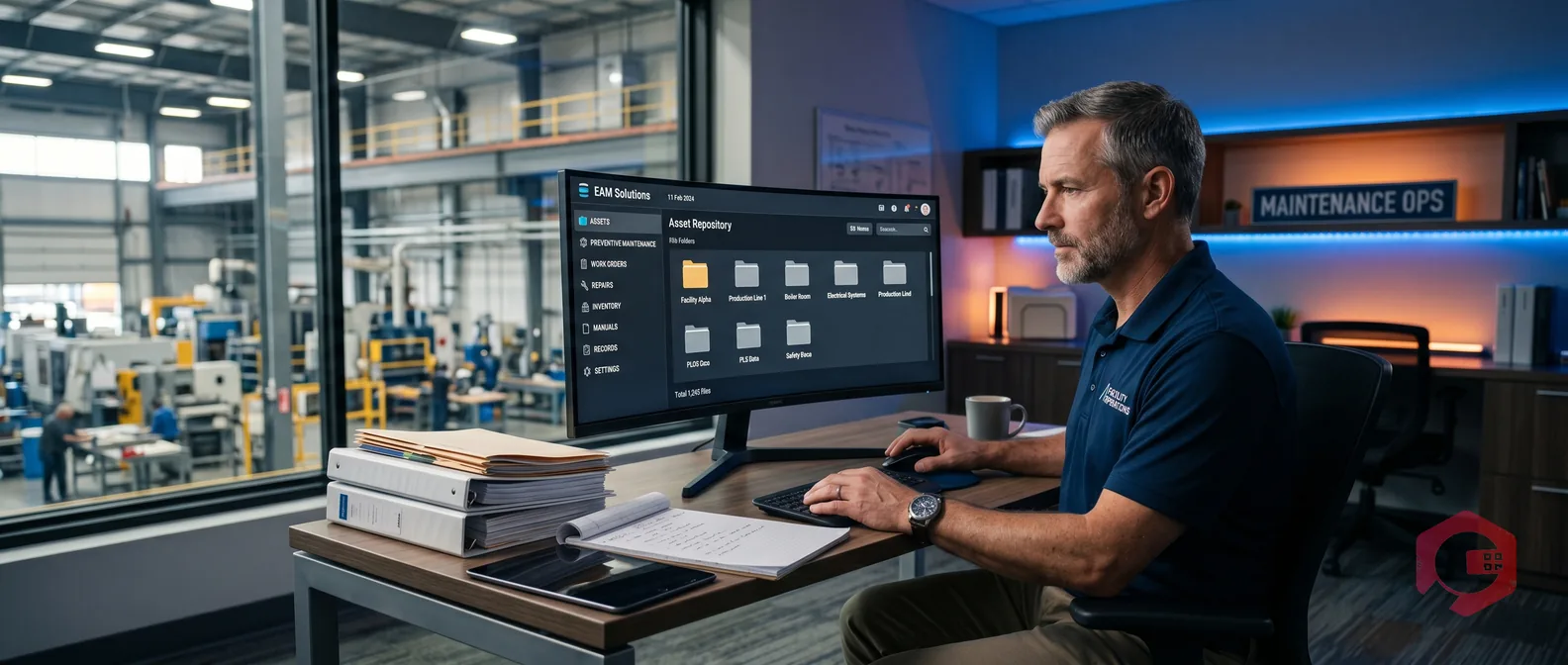
File Management in Cryotos CMMS: Build a Central Document Repository With Role-Based Access

Article Written by:

Muthu Karuppaiah

Created On:

April 30, 2026

File Management in Cryotos CMMS: Build a Central Document Repository With Role-Based Access

File management in CMMS is the ability to store, organize, and control access to every document your maintenance team relies on — from SOPs and compliance certificates to equipment manuals and inspection reports — all in one central location. Cryotos CMMS takes this further with a structured document repository where you can build folder hierarchies, link attachments directly from work orders, assets, and preventive maintenance modules, and assign granular user roles to control exactly who sees what.


If your team is still emailing PDFs back and forth or hunting for the right manual at 2 AM during a breakdown, this guide is for you.

What Is File Management in a CMMS?

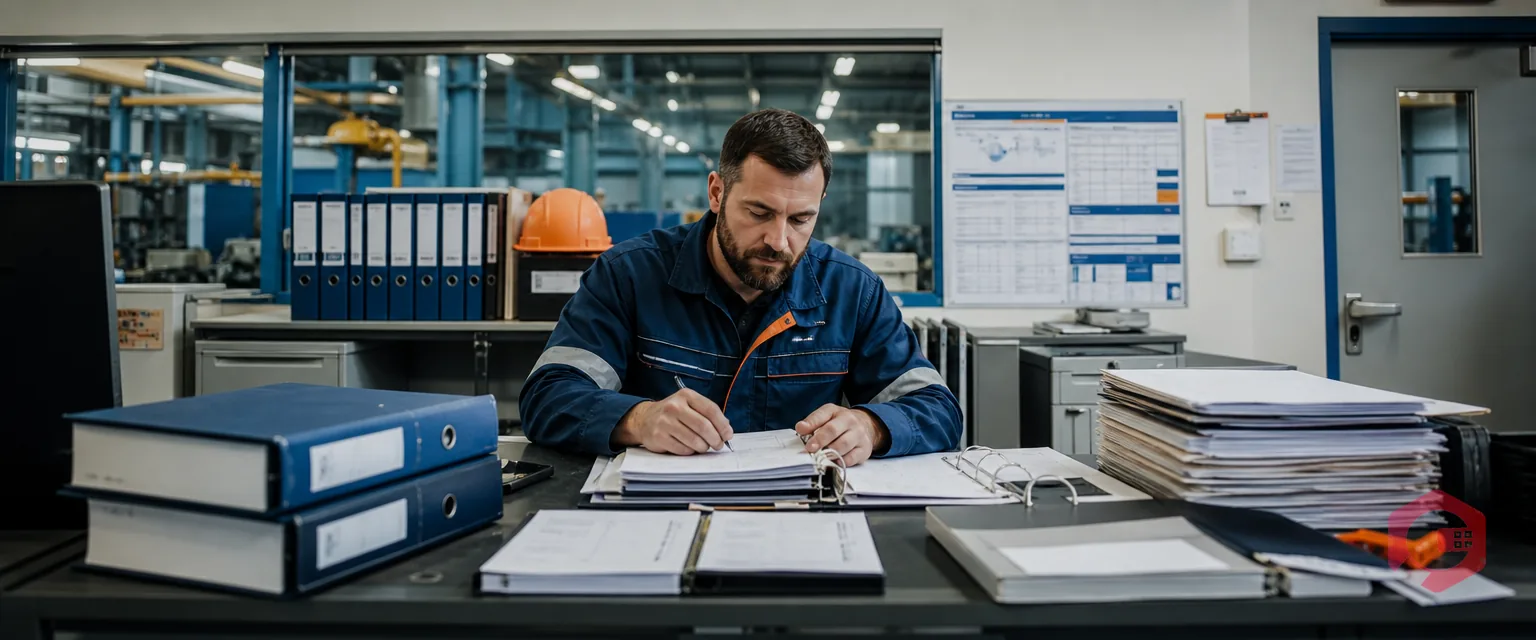
Most maintenance teams operate with documents scattered across email threads, shared drives, paper binders, and individual phones. When a technician needs an equipment manual mid-repair, that scattered setup creates delays — and delays cost money. A CMMS with built-in file management solves this by giving every document a permanent, searchable home tied directly to the asset, work order, or task it belongs to.


Cryotos approaches file management as a central document repository — not just a storage folder. Every file you upload is connected to context: which asset it belongs to, which work order it was attached to, which team has access. That context is what turns raw document storage into an operational advantage.
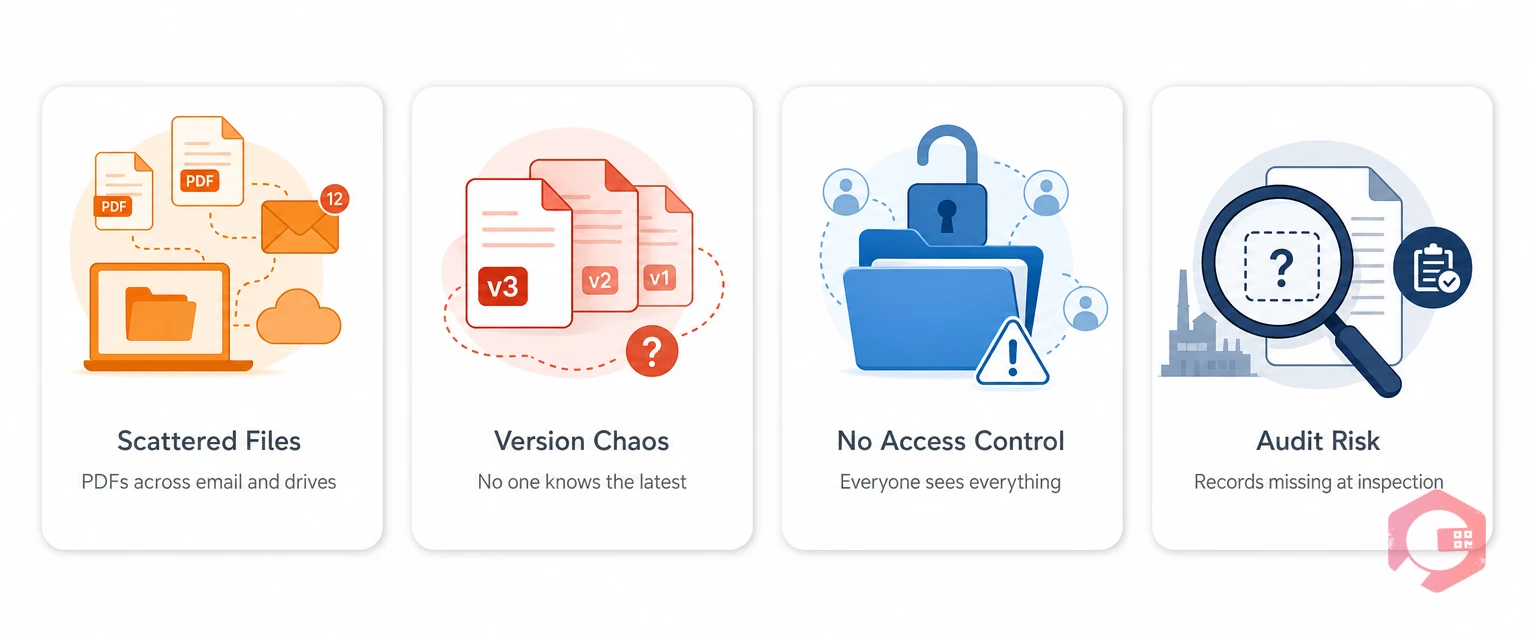


Four document management pain points — scattered files, version chaos, no access control, audit risk | Cryotos

How to Create and Organize Folders in Cryotos

Cryotos lets you build a folder structure that mirrors how your operations actually work. You can create parent folders for departments, plants, or asset categories, then nest sub-folders underneath for specific equipment lines, compliance types, or maintenance frequencies. There is no rigid template — the hierarchy is yours to define.


Setting Up Your Folder Hierarchy

Start with your top-level categories. Most teams organize by one of three approaches:


  • By Asset Type — A top-level folder for HVAC, Electrical, Plumbing, and so on, with sub-folders per equipment unit. This works well for facilities teams managing diverse asset inventories.
  • By Location or Plant — A folder per site or building, with sub-folders for each department or floor. This is the default choice for multi-site operations.
  • By Document Type — Top-level folders for SOPs, Compliance Certificates, Warranty Documents, and OEM Manuals, with assets or locations as sub-folders. This makes audits faster since all certificates sit in one place.


You can also combine these approaches — for example, a plant-level parent folder with asset-type sub-folders inside. Once your structure is in place, folders persist across sessions and are immediately available to all users with the appropriate access level.
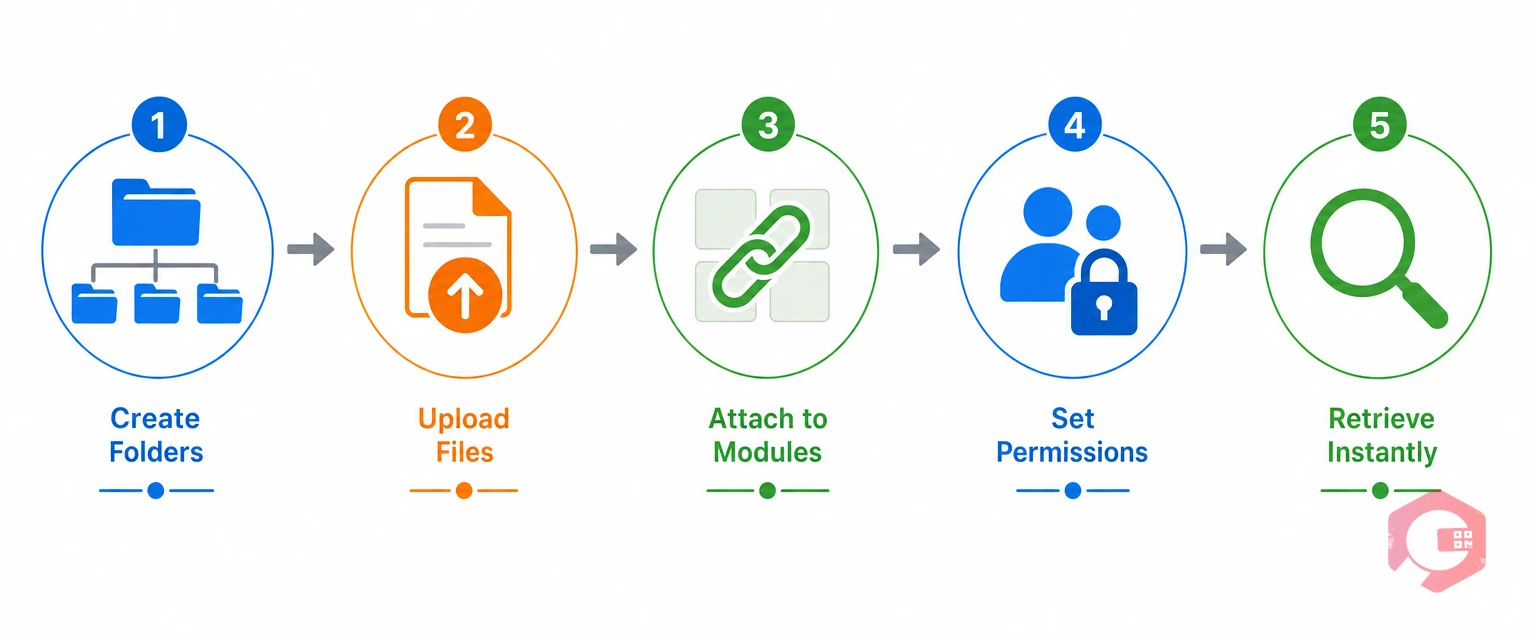


Five-step file organization in a CMMS — Organize, Upload, Attach, Permissions, Retrieve | Cryotos

Linking Attachments From Any Module

What makes Cryotos file management genuinely useful in day-to-day maintenance is the ability to attach documents directly from within any module — not just from the file repository screen. When a technician closes out a work order, they can upload inspection photos, checklists, or safety sign-offs right in the work order form. Those files are automatically stored in the central repository and linked back to the work order record.


Modules That Support Direct Attachments

Every major module in Cryotos supports file attachments at the point of action:


  • Work Orders — Attach before/after photos, PDF reports, video walkthroughs, and safety certifications. These attach to the specific work order and are retrievable by job number or asset.
  • Preventive Maintenance — Upload calibration records, compliance certificates, and completed checklists against each scheduled task. This creates an automatic audit trail for every PM cycle.
  • Asset Management — Link OEM manuals, warranty documents, installation records, and wiring diagrams directly to the asset profile. Technicians accessing the asset QR code instantly see every document tied to that machine.
  • Inventory Management — Attach supplier invoices, material safety data sheets (MSDS), and purchase order records to individual parts or stock items.


Every attachment flows into the central repository automatically, tagged with its source module, date, and the user who uploaded it. Nothing gets lost, and nothing needs to be filed manually after the fact.


Building a Central Document Repository

The Cryotos file repository is not a passive storage space — it is a live, searchable record of everything your maintenance operation has ever documented. You can filter by asset, module, date range, file type, or uploader. If a regulator asks for all inspection records for a specific piece of equipment over the past three years, pulling that report takes minutes, not days.


The repository also eliminates version confusion. When a new SOP is uploaded to a folder, it replaces or sits alongside the older version with a clear timestamp. Teams always know they are working from the current document. For organizations running preventive maintenance programs at scale, this version control alone reduces compliance risk substantially.


Document lifecycle in a CMMS — Upload, Organize, Use, Update | Cryotos

Assigning Users, Roles, and Permissions

Not every document needs to be visible to everyone. Cryotos gives you precise control over who can view, upload, edit, or delete files within each folder — without requiring IT involvement every time access needs to change.


Role-Based Access Control for Folders

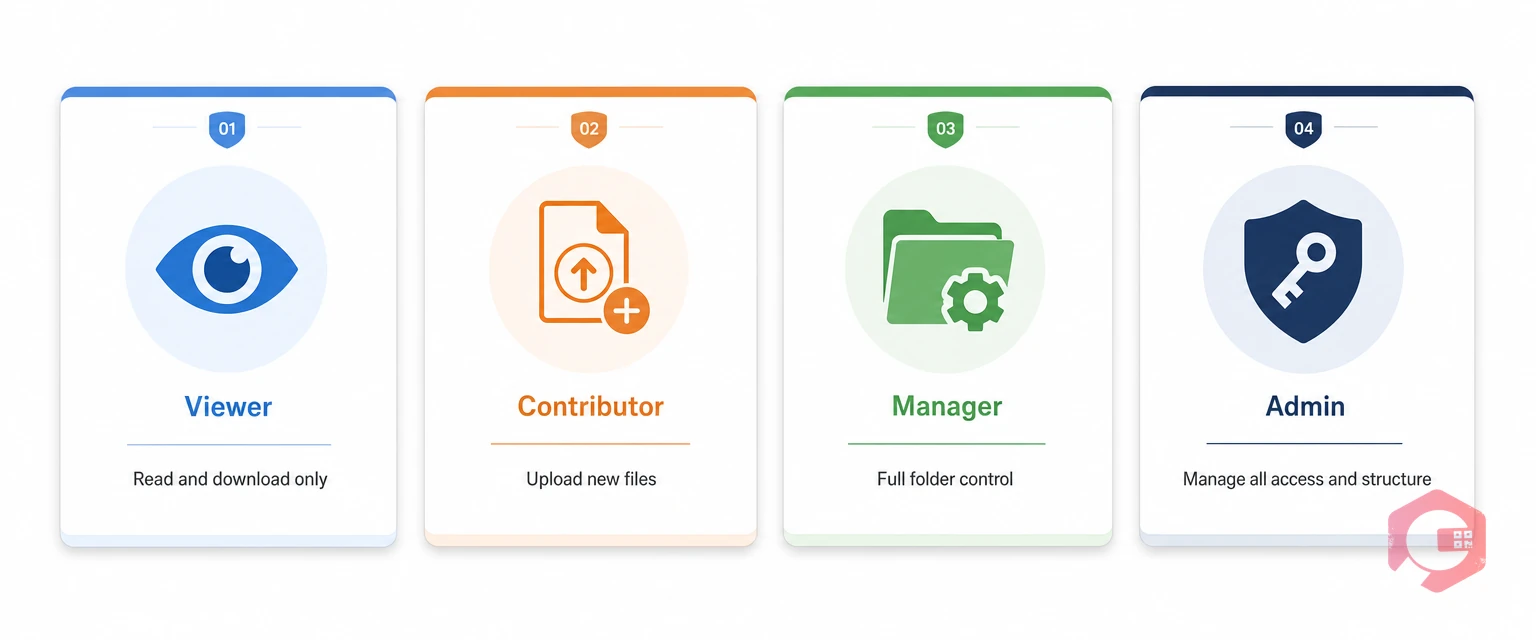
Folder-level permissions in Cryotos are built on a role-based access model. When you create a folder, you assign it to specific users or user groups. Access levels follow a tiered structure:


  • Viewer — Can open and download files in the folder. Cannot upload, edit, or delete. Suitable for technicians who need read access to manuals and SOPs without the risk of accidental overwrites.
  • Contributor — Can upload new files and view existing ones. Cannot delete or restructure the folder. Ideal for team leads submitting completed checklists or inspection reports.
  • Manager — Full control over folder contents, including the ability to rename, delete, and reorganize files. Typically assigned to maintenance supervisors or department heads.
  • Admin — Can manage folder structure, assign or revoke user access, and oversee the entire repository. Reserved for super admins or compliance officers.


Assigning Users to Specific Folders

Access can be assigned at the individual user level or to entire user groups. If you have a contract maintenance team that should only see documents relevant to their scope of work, you create a dedicated folder, assign that folder to their user group, and nothing else in the repository is visible to them. This keeps sensitive commercial documents, HR records, or executive-level compliance files completely separate from the shop floor.


Access changes take effect immediately, with no restart or sync delay. If a contractor's engagement ends, their folder access is revoked in seconds. Every access change is logged with a timestamp, giving you a complete audit trail for any permissions review.


Technician on plant floor accessing asset documents via Cryotos CMMS with role-based access | Cryotos

Key Benefits of Centralized File Management

When document management is built into your CMMS rather than bolted on through a separate platform, the operational gains compound over time. Teams stop duplicating uploads. Compliance audits stop being fire drills. New technicians can find the manual for any asset on their first day without asking anyone.


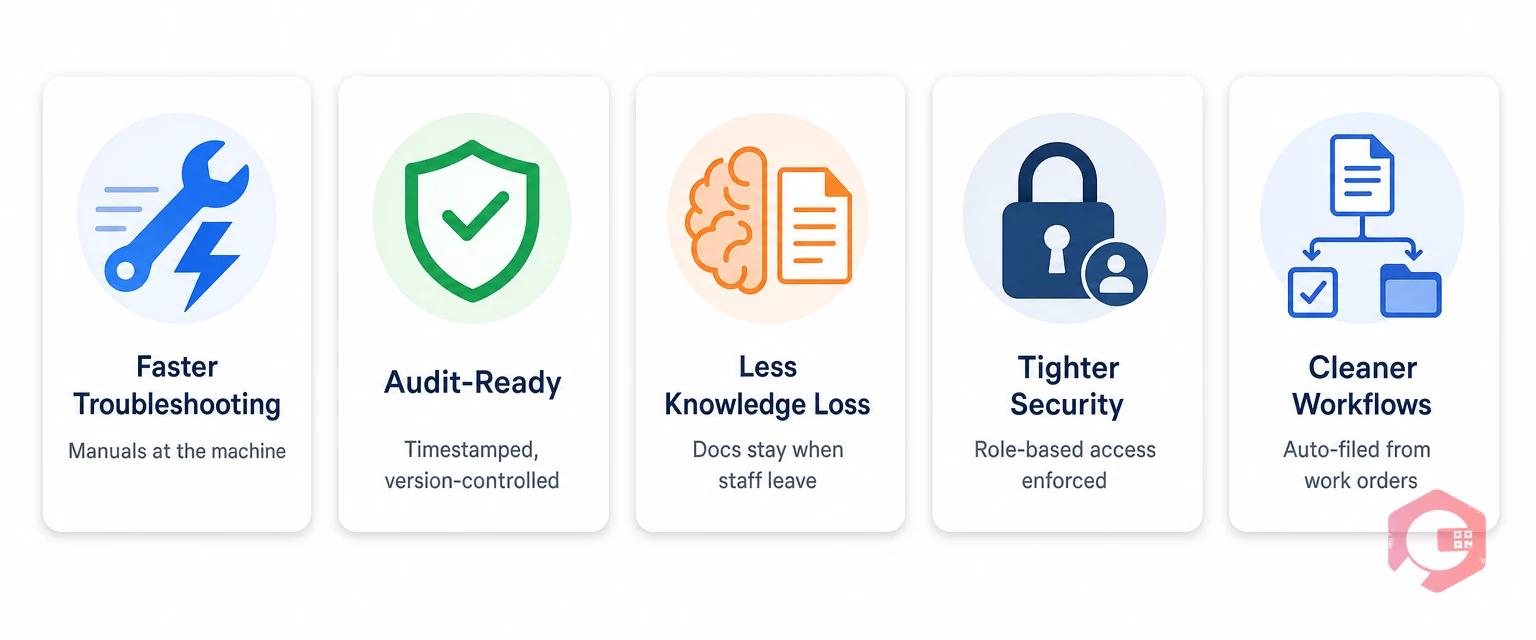
  • Faster troubleshooting — Technicians access OEM manuals and repair histories at the asset level, right from the mobile app, without calling the office.
  • Audit-ready compliance — Every PM certificate, safety sign-off, and inspection report is timestamped, version-controlled, and retrievable by asset or date range.
  • Reduced knowledge loss — When experienced technicians leave, their uploaded documents, photos, and reports stay. Institutional knowledge does not walk out the door.
  • Tighter security — Role-based permissions ensure sensitive contracts and compliance records are only visible to the people who need them.
  • Cleaner workflows — Because attachments happen inside work orders and PM tasks, the document ends up in the right place automatically. No separate filing step required.


Frequently Asked Questions


Can I attach multiple file types in Cryotos file management?

Yes. Cryotos supports PDFs, images (JPG, PNG), video files, and common document formats including Word and Excel. Technicians can upload photos directly from the mobile app camera, or attach pre-existing files from their device or cloud storage.


Is there a limit on how many folders or files I can create?

Folder creation is unlimited. File storage limits depend on your subscription plan. Most enterprise plans include large storage allocations, and Cryotos support can advise on options if your organization manages high volumes of video or high-resolution image files.


Can external contractors access specific folders without seeing the rest of the system?

Yes. You can create a dedicated folder, assign a contractor user group to it with Viewer or Contributor access, and that user group will only see the folders they have been explicitly assigned to. The rest of the repository remains hidden from them.


Are file attachments in work orders automatically saved to the central repository?

Yes. Any file attached within a work order, PM task, or asset profile is automatically indexed in the central repository. You can search for it by module, asset, date, or uploader without re-uploading it separately.


How does Cryotos file management help with ISO or regulatory audits?

Because every file is timestamped, version-tracked, and linked to the asset or task it belongs to, generating an audit package is straightforward. Filter by asset, date range, and document type, then export the record. This replaces manual document collection that typically takes days and often turns up gaps.


If scattered documents and inconsistent access are slowing your maintenance team down, Cryotos gives you the structure to fix it — without switching platforms or hiring a document manager. The file repository, combined with role-based access and module-level attachments, turns document chaos into a searchable, audit-ready system your whole team can actually use. See how Cryotos CMMS works and book a demo to walk through the file management module with your own use case.

Want to Try Cryotos CMMS Today? Lets Connect!
Thank you! Your submission has been received!
Oops! Something went wrong while submitting the form.
Related Post

File Management in Cryotos CMMS: Build a Central Document Repository With Role-Based Access

Calendar
Duration:
calendar today
Published on
April 30, 2026
Featured Image

File management in CMMS is the ability to store, organize, and control access to every document your maintenance team relies on — from SOPs and compliance certificates to equipment manuals and inspection reports — all in one central location. Cryotos CMMS takes this further with a structured document repository where you can build folder hierarchies, link attachments directly from work orders, assets, and preventive maintenance modules, and assign granular user roles to control exactly who sees what.


If your team is still emailing PDFs back and forth or hunting for the right manual at 2 AM during a breakdown, this guide is for you.

What Is File Management in a CMMS?

Most maintenance teams operate with documents scattered across email threads, shared drives, paper binders, and individual phones. When a technician needs an equipment manual mid-repair, that scattered setup creates delays — and delays cost money. A CMMS with built-in file management solves this by giving every document a permanent, searchable home tied directly to the asset, work order, or task it belongs to.


Cryotos approaches file management as a central document repository — not just a storage folder. Every file you upload is connected to context: which asset it belongs to, which work order it was attached to, which team has access. That context is what turns raw document storage into an operational advantage.


Four document management pain points — scattered files, version chaos, no access control, audit risk | Cryotos

How to Create and Organize Folders in Cryotos

Cryotos lets you build a folder structure that mirrors how your operations actually work. You can create parent folders for departments, plants, or asset categories, then nest sub-folders underneath for specific equipment lines, compliance types, or maintenance frequencies. There is no rigid template — the hierarchy is yours to define.


Setting Up Your Folder Hierarchy

Start with your top-level categories. Most teams organize by one of three approaches:


  • By Asset Type — A top-level folder for HVAC, Electrical, Plumbing, and so on, with sub-folders per equipment unit. This works well for facilities teams managing diverse asset inventories.
  • By Location or Plant — A folder per site or building, with sub-folders for each department or floor. This is the default choice for multi-site operations.
  • By Document Type — Top-level folders for SOPs, Compliance Certificates, Warranty Documents, and OEM Manuals, with assets or locations as sub-folders. This makes audits faster since all certificates sit in one place.


You can also combine these approaches — for example, a plant-level parent folder with asset-type sub-folders inside. Once your structure is in place, folders persist across sessions and are immediately available to all users with the appropriate access level.


Five-step file organization in a CMMS — Organize, Upload, Attach, Permissions, Retrieve | Cryotos

Linking Attachments From Any Module

What makes Cryotos file management genuinely useful in day-to-day maintenance is the ability to attach documents directly from within any module — not just from the file repository screen. When a technician closes out a work order, they can upload inspection photos, checklists, or safety sign-offs right in the work order form. Those files are automatically stored in the central repository and linked back to the work order record.


Modules That Support Direct Attachments

Every major module in Cryotos supports file attachments at the point of action:


  • Work Orders — Attach before/after photos, PDF reports, video walkthroughs, and safety certifications. These attach to the specific work order and are retrievable by job number or asset.
  • Preventive Maintenance — Upload calibration records, compliance certificates, and completed checklists against each scheduled task. This creates an automatic audit trail for every PM cycle.
  • Asset Management — Link OEM manuals, warranty documents, installation records, and wiring diagrams directly to the asset profile. Technicians accessing the asset QR code instantly see every document tied to that machine.
  • Inventory Management — Attach supplier invoices, material safety data sheets (MSDS), and purchase order records to individual parts or stock items.


Every attachment flows into the central repository automatically, tagged with its source module, date, and the user who uploaded it. Nothing gets lost, and nothing needs to be filed manually after the fact.


Building a Central Document Repository

The Cryotos file repository is not a passive storage space — it is a live, searchable record of everything your maintenance operation has ever documented. You can filter by asset, module, date range, file type, or uploader. If a regulator asks for all inspection records for a specific piece of equipment over the past three years, pulling that report takes minutes, not days.


The repository also eliminates version confusion. When a new SOP is uploaded to a folder, it replaces or sits alongside the older version with a clear timestamp. Teams always know they are working from the current document. For organizations running preventive maintenance programs at scale, this version control alone reduces compliance risk substantially.


Document lifecycle in a CMMS — Upload, Organize, Use, Update | Cryotos

Assigning Users, Roles, and Permissions

Not every document needs to be visible to everyone. Cryotos gives you precise control over who can view, upload, edit, or delete files within each folder — without requiring IT involvement every time access needs to change.


Role-Based Access Control for Folders

Folder-level permissions in Cryotos are built on a role-based access model. When you create a folder, you assign it to specific users or user groups. Access levels follow a tiered structure:


  • Viewer — Can open and download files in the folder. Cannot upload, edit, or delete. Suitable for technicians who need read access to manuals and SOPs without the risk of accidental overwrites.
  • Contributor — Can upload new files and view existing ones. Cannot delete or restructure the folder. Ideal for team leads submitting completed checklists or inspection reports.
  • Manager — Full control over folder contents, including the ability to rename, delete, and reorganize files. Typically assigned to maintenance supervisors or department heads.
  • Admin — Can manage folder structure, assign or revoke user access, and oversee the entire repository. Reserved for super admins or compliance officers.


Assigning Users to Specific Folders

Access can be assigned at the individual user level or to entire user groups. If you have a contract maintenance team that should only see documents relevant to their scope of work, you create a dedicated folder, assign that folder to their user group, and nothing else in the repository is visible to them. This keeps sensitive commercial documents, HR records, or executive-level compliance files completely separate from the shop floor.


Access changes take effect immediately, with no restart or sync delay. If a contractor's engagement ends, their folder access is revoked in seconds. Every access change is logged with a timestamp, giving you a complete audit trail for any permissions review.


Technician on plant floor accessing asset documents via Cryotos CMMS with role-based access | Cryotos

Key Benefits of Centralized File Management

When document management is built into your CMMS rather than bolted on through a separate platform, the operational gains compound over time. Teams stop duplicating uploads. Compliance audits stop being fire drills. New technicians can find the manual for any asset on their first day without asking anyone.


  • Faster troubleshooting — Technicians access OEM manuals and repair histories at the asset level, right from the mobile app, without calling the office.
  • Audit-ready compliance — Every PM certificate, safety sign-off, and inspection report is timestamped, version-controlled, and retrievable by asset or date range.
  • Reduced knowledge loss — When experienced technicians leave, their uploaded documents, photos, and reports stay. Institutional knowledge does not walk out the door.
  • Tighter security — Role-based permissions ensure sensitive contracts and compliance records are only visible to the people who need them.
  • Cleaner workflows — Because attachments happen inside work orders and PM tasks, the document ends up in the right place automatically. No separate filing step required.


Frequently Asked Questions


Can I attach multiple file types in Cryotos file management?

Yes. Cryotos supports PDFs, images (JPG, PNG), video files, and common document formats including Word and Excel. Technicians can upload photos directly from the mobile app camera, or attach pre-existing files from their device or cloud storage.


Is there a limit on how many folders or files I can create?

Folder creation is unlimited. File storage limits depend on your subscription plan. Most enterprise plans include large storage allocations, and Cryotos support can advise on options if your organization manages high volumes of video or high-resolution image files.


Can external contractors access specific folders without seeing the rest of the system?

Yes. You can create a dedicated folder, assign a contractor user group to it with Viewer or Contributor access, and that user group will only see the folders they have been explicitly assigned to. The rest of the repository remains hidden from them.


Are file attachments in work orders automatically saved to the central repository?

Yes. Any file attached within a work order, PM task, or asset profile is automatically indexed in the central repository. You can search for it by module, asset, date, or uploader without re-uploading it separately.


How does Cryotos file management help with ISO or regulatory audits?

Because every file is timestamped, version-tracked, and linked to the asset or task it belongs to, generating an audit package is straightforward. Filter by asset, date range, and document type, then export the record. This replaces manual document collection that typically takes days and often turns up gaps.


If scattered documents and inconsistent access are slowing your maintenance team down, Cryotos gives you the structure to fix it — without switching platforms or hiring a document manager. The file repository, combined with role-based access and module-level attachments, turns document chaos into a searchable, audit-ready system your whole team can actually use. See how Cryotos CMMS works and book a demo to walk through the file management module with your own use case.

Want to Try Cryotos CMMS Today?

Get Free Demo

Let AI Take Control of Your Maintenance

Cryotos AI predicts failures, automates work orders, and simplifies maintenance—before problems slow you down.

Try AI-Powered CMMS
🡢